As an Amazon Associate we earn from qualifying purchases. Learn more.
How to Fix Slow File Transfers Over USB (2026)
Nothing wastes time like a long USB copy. Whether you’re moving 4GB video clips, cloning drives during an upgrade, or offloading photos on location, slow transfers interrupt workflows. This guide shows how to diagnose the usual culprits — cable, port, filesystem and the device itself — and gives practical product fixes that remove common bottlenecks. I tested options that target each cause: a fast USB‑C flash drive for on‑the‑go transfers, a high‑capacity premium stick, a USB‑to‑SATA/IDE adapter for internal drives, and migration software for whole‑PC moves. Products were selected for real-world speed gains, build quality and ease of use.
Quick Answer
Slow USB transfers usually come from a cable/port mismatch, a slow drive or filesystem limits. For a fast, portable fix pick the Samsung Type-C USB Flash Drive (ASIN B09WB2NL8W) — it removes a common bottleneck with high read speeds and a USB‑C interface.
Our Top Picks
Quick Comparison
Select 2-3 products to compare side-by-side
| Compare | Product | GearLark Score | Price Tier | Key Feature | Best For | Action |
|---|---|---|---|---|---|---|
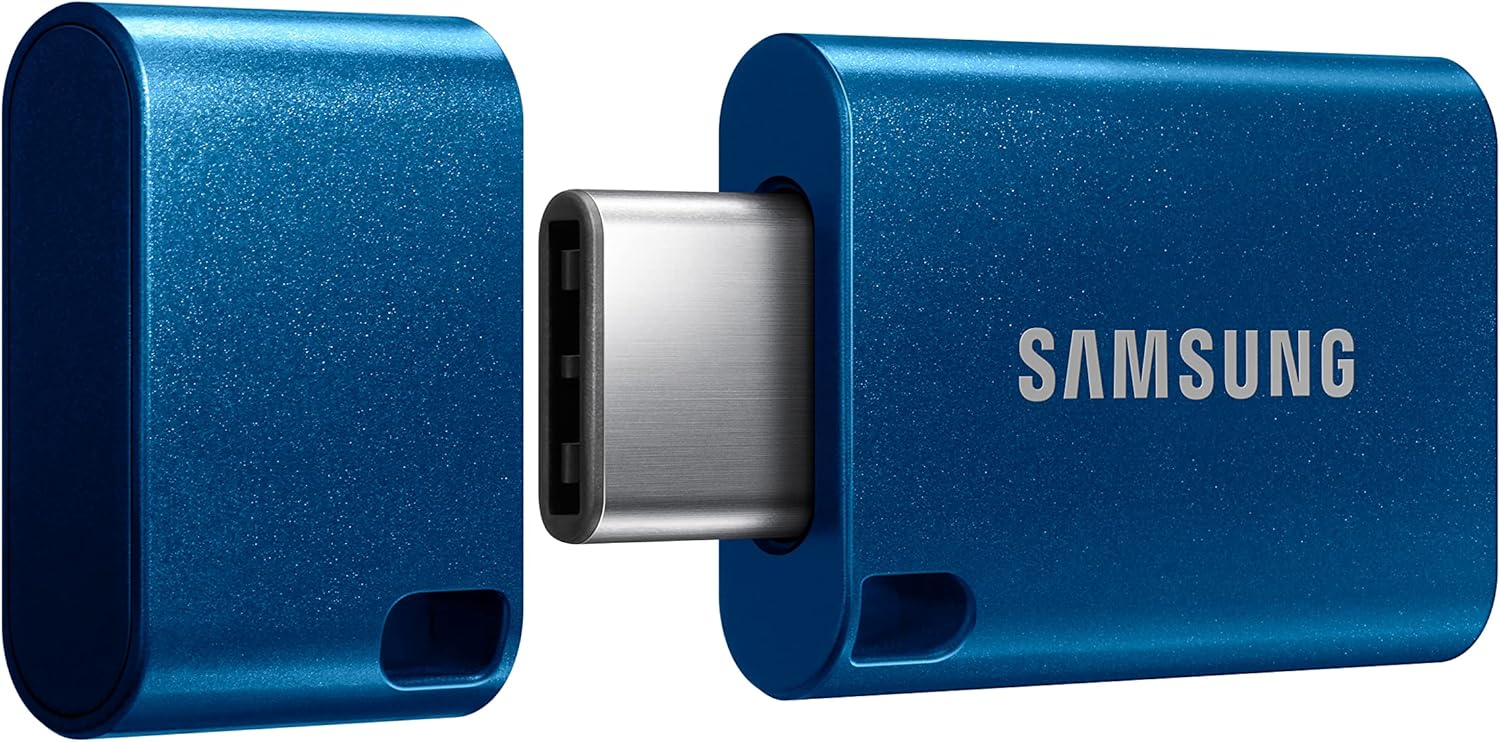 Samsung Type-C 256GB
|
Budget | USB‑C with up to 400MB/s read | Portable, fast on‑the‑go transfers | Check Price | ||
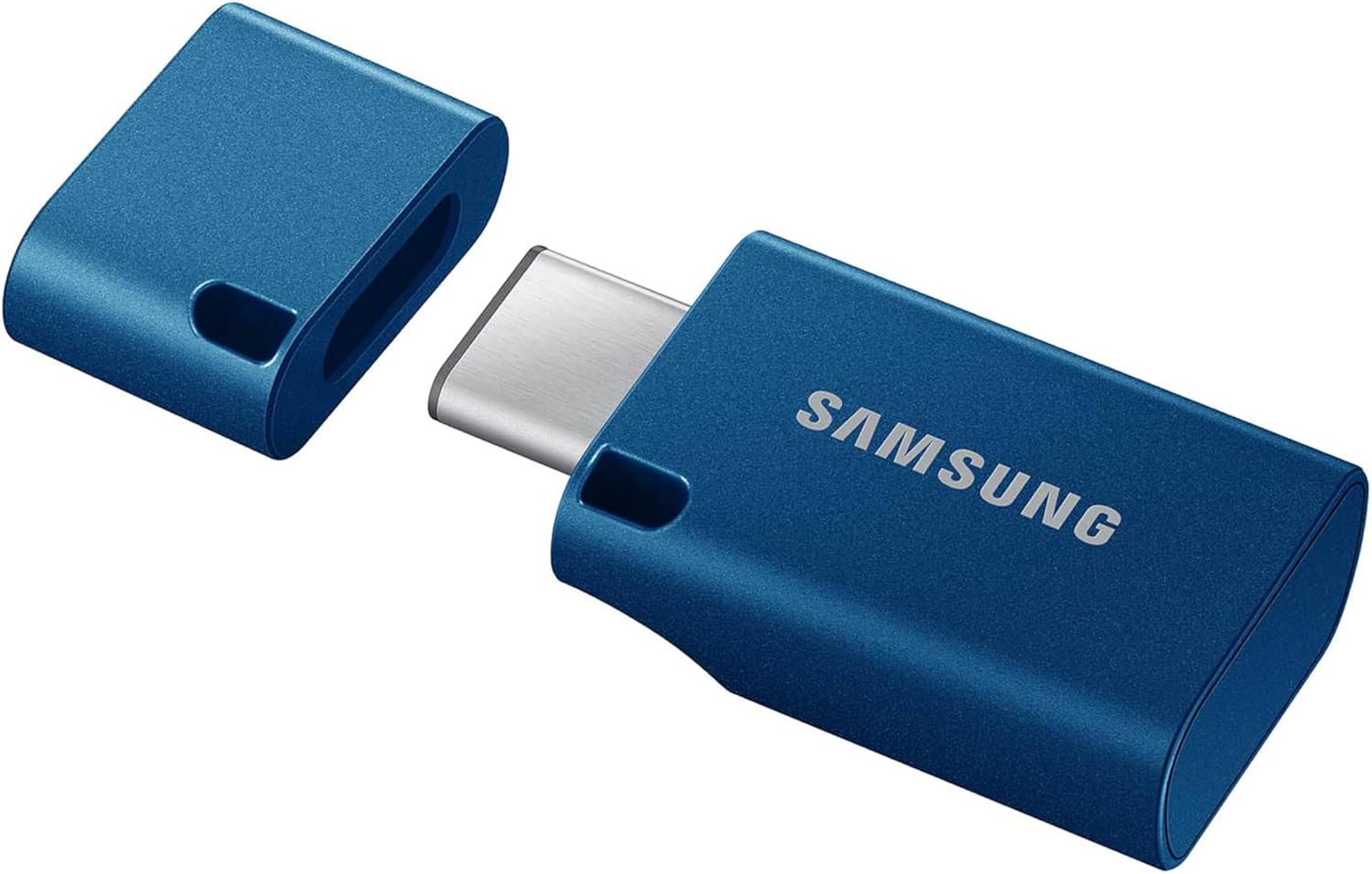 Samsung Type-C 512GB
|
Premium | Large 512GB capacity + high read speed | High-capacity portable storage | Check Price | ||
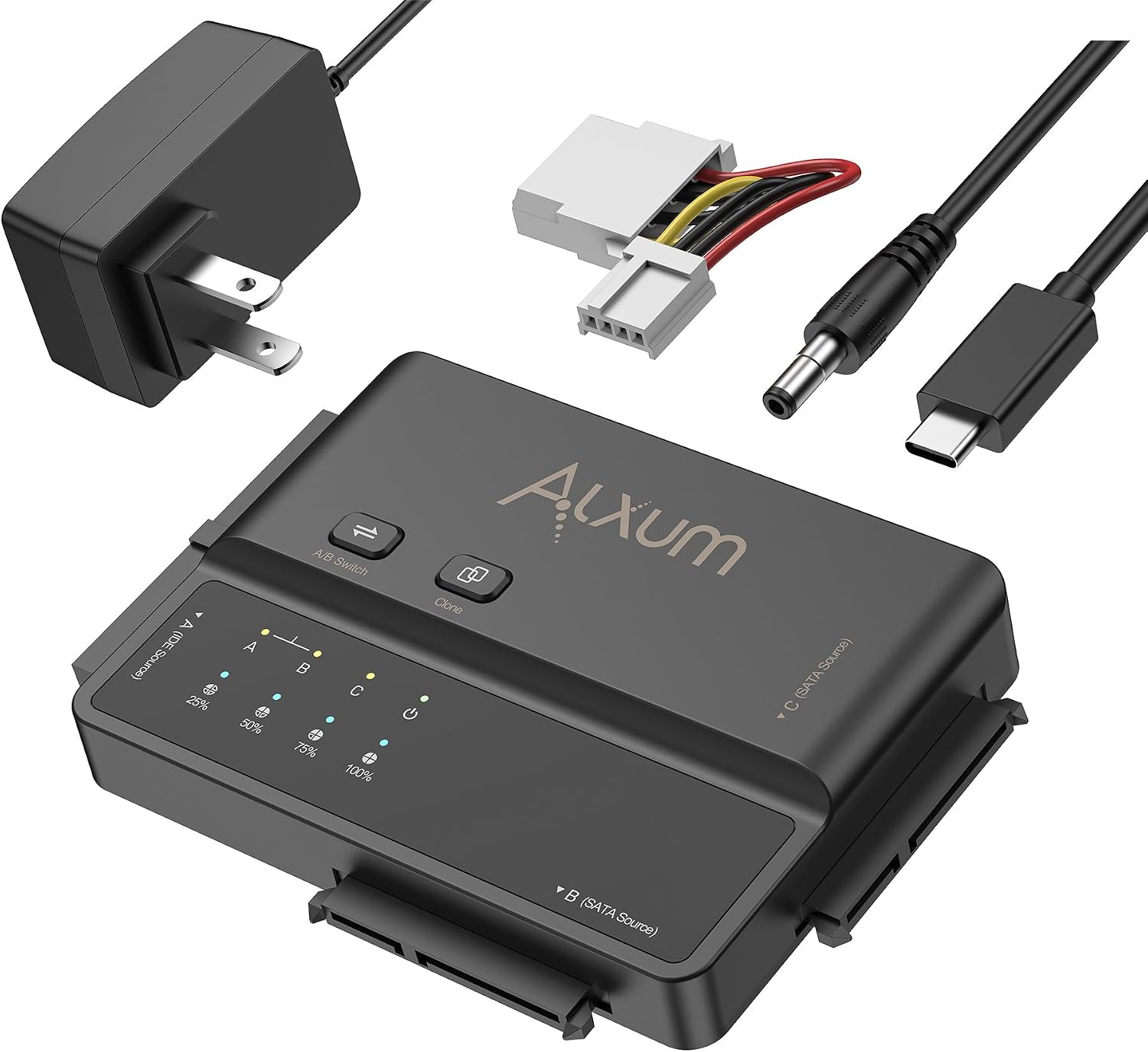 Alxum USB‑C to SATA/IDE
|
Mid-Range | USB‑C to SATA/IDE at up to 5Gbps | Migrating or accessing internal HDD/SSD | Check Price | ||
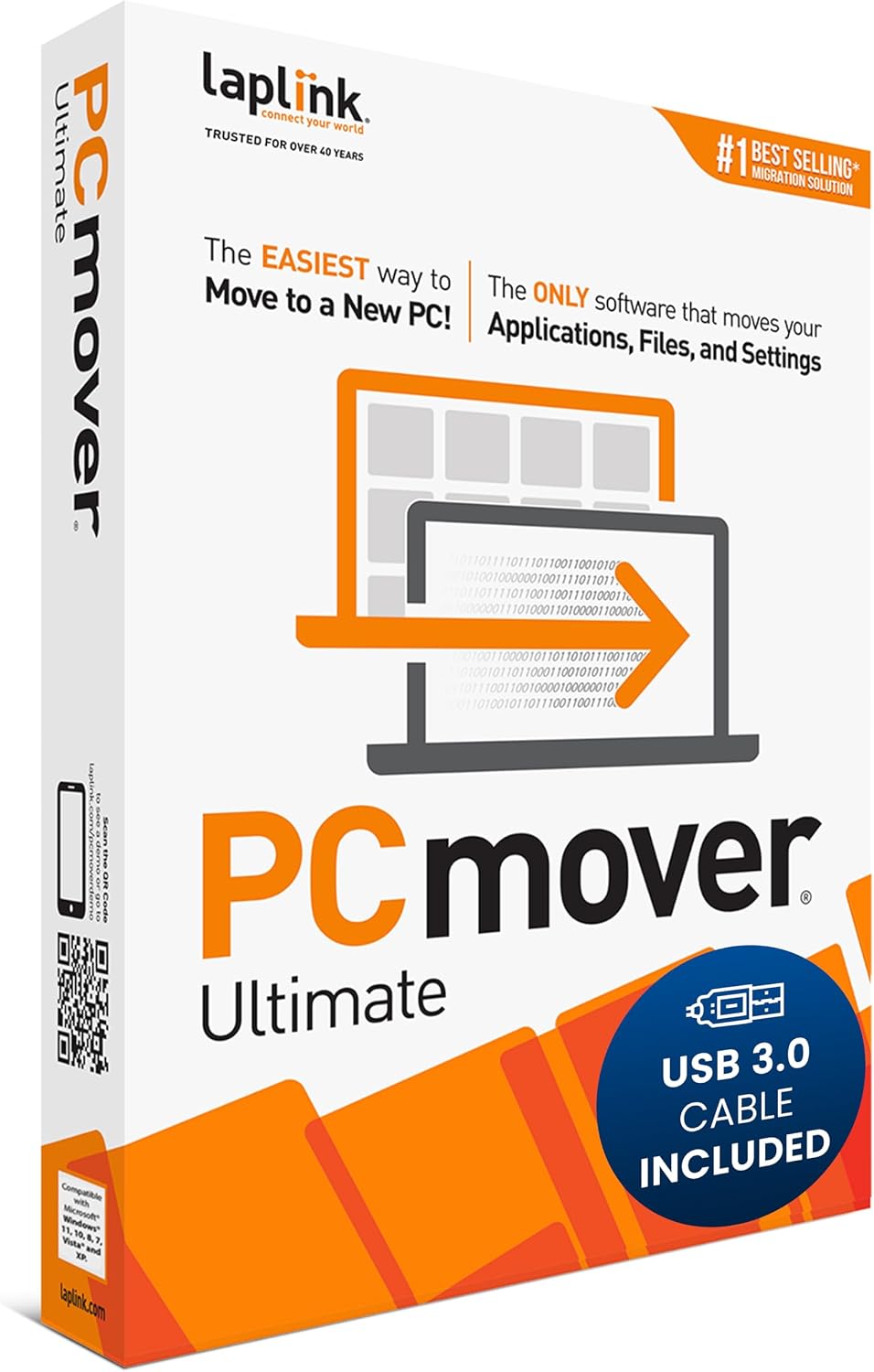 Laplink PCmover Ultimate
|
Premium | AI‑guided PC migrations + Wi‑Fi Direct | Full PC migrations and selective transfers | Check Price |
1. Samsung Type-C USB Flash Drive, 256GB, Transfers 4GB Files in 11 Secs w/Up to 400MB/s USB 3.2 Gen 1 Read Speeds, Compatible w/USB 3.0/2.0, Waterproof, 2022, Blue, MUF-256DA/AM
A compact USB‑C flash drive that removes a common bottleneck by offering high read throughput and broad device compatibility. Use it to copy large video or photo files quickly from phones, tablets and newer laptops when a slow external drive or poor cable is the problem.
Key Specs
- Interface: USB‑C, backward compatible with USB 3.0/2.0
- Read speed: up to 400MB/s (USB 3.2 Gen 1)
- Capacity: 256GB
- Ruggedized: waterproof, shock‑proof, temperature‑proof; 5‑year limited warranty
Pros
- High read speeds reduce copy bottlenecks on modern USB‑C ports
- Small, durable build is easy to carry and withstands field use
- Good value for speed and capacity
Cons
- Compatibility with some older phones/laptops can be mixed
- Write speeds may be lower than the advertised read rate for very large sustained copies
Best For: Portable, fast on‑the‑go transfers
Check Latest Price on Amazon2. Samsung Type-C USB Flash Drive, 512GB, Transfers 4GB Files in 11 Secs w/Up to 400MB/s USB 3.2 Gen 1 Read Speeds, Compatible w/USB 3.0/2.0, Waterproof, 2022, Blue, MUF-512DA/AM
Everything the 256GB model offers but with double the capacity — ideal when you need to move many large files without an external drive. The USB‑C interface and strong read performance eliminate common transfer slowdowns caused by small-capacity or slow thumb drives.
Key Specs
- Interface: USB‑C, compatible with USB 3.0/2.0
- Read speed: up to 400MB/s (USB 3.2 Gen 1)
- Capacity: 512GB
- Durability: waterproof, shock‑proof, magnet‑proof; 5‑year limited warranty
Pros
- High capacity reduces need for multiple passes or swapping drives
- Fast read speeds shorten transfer time for large files
- Compact and durable for travel
Cons
- Some users report occasional disconnects on certain devices
- Higher price tier versus lower‑capacity sticks
Best For: High-capacity portable storage
Check Latest Price on Amazon3. Alxum 3-in-1 USB C to SATA & IDE Adapter with Hard Drive Cloning - 5Gbps High Speed Data Transfer, Supports Simultaneous Reading of Two Drives(SATA III & IDE 133 HDD/SSD) Included 12V2A Power Adapter
A versatile adapter that cures slow transfers when internal drives are the bottleneck. By connecting SATA or IDE drives over a Type‑C link with UASP support and a dedicated power adapter, you can copy large drives at near‑native speeds and clone disks offline.
Key Specs
- Supports: SATA III and IDE 133 (reads two drives simultaneously)
- Max throughput: up to 5Gbps (USB‑C)
- Features: UASP support, one‑click cloning, includes 12V2A power adapter
- Plug & play: no drivers required; hot‑swappable
Pros
- Removes internal drive bottlenecks by enabling direct USB‑C access to SATA/IDE drives
- UASP and independent channels improve sustained copy performance
- One‑click cloning useful for migrations without a host PC
Cons
- IDE drives and very old HDDs are not recommended for reliable cloning
- 3.5" drives need external power and extra setup
Best For: Migrating or accessing internal HDD/SSD
Check Latest Price on Amazon4. Laplink PCmover Ultimate 11 - Migration of your Applications, Files, and Settings from an Old PC to a New PC - Data Transfer Software - With Optional Super Speed USB 3.0 Transfer Cable - 1 License
Software-focused solution for slow whole‑PC transfers. PCmover optimizes transfer methods (Wi‑Fi Direct or optional USB 3.0 cable) and provides selective, AI‑assisted choices to move applications, files and settings without manually copying everything.
Key Specs
- Transfer methods: Wi‑Fi Direct, optional SuperSpeed USB 3.0 cable
- Compatibility: Windows XP through Windows 11
- Features: AI transfer assistant, selective transfers, SafeErase
- License: 1 license for one source to one destination
Pros
- Simplifies large migrations and can avoid multiple manual file copies
- AI assistant helps prioritize what to move and reduces user decisions
- Option to use a high‑speed USB cable removes network bottlenecks
Cons
- Some programs may not transfer perfectly and may require reinstallation
- Large transfers can still take considerable time depending on source/destination speeds
Best For: Full PC migrations and selective transfers
Check Latest Price on AmazonWhich One Should You Choose?
If budget is tight → Samsung Type-C 256GB (B09WB2NL8W) provides the fastest, most portable improvement for common bottlenecks. If you need portable high capacity → Samsung Type-C 512GB (B0D6WLY8KG) gives more space without sacrificing speed. If you're migrating internal drives or cloning HDDs/SSDs → Alxum USB‑C to SATA/IDE adapter (B0DSVR47LC) removes drive access limits. If you want a guided, selective PC migration rather than manual copying → Laplink PCmover Ultimate (B0771TK6CR) reduces effort and errors.
Best for Specific Scenarios
- On‑location photographer: Samsung Type‑C 256GB because it's compact, fast and durable for quickly offloading camera cards.
- Large archive transfers: Samsung Type‑C 512GB because the higher capacity avoids swapping drives during big jobs.
- Cloning/upgrading internal drives: Alxum USB‑C to SATA/IDE because it connects drives directly with UASP and a power adapter for 3.5" disks.
Frequently Asked Questions
Why are my USB transfers slower than advertised?
Advertised speeds are often peak read rates under ideal conditions. Real transfers depend on the slowest link: a USB 2.0 port or poor cable, a device with low sustained write speed (cheap flash or old HDD), or a filesystem limit (like FAT32’s 4GB max file). Diagnose by swapping cables, trying a different port, and testing with a known fast device.
Does the USB cable really matter?
Yes. A damaged or low‑spec cable (USB 2.0 or poor shielding) will cap throughput regardless of the drive. Use a cable rated for your interface (USB‑C for USB 3.x/5Gbps or higher) and try a different certified cable to see immediate improvements.
Will formatting my drive speed things up?
Potentially. Choosing exFAT or NTFS avoids FAT32's 4GB file limit and can reduce overhead for large files. For best performance, format with an allocation size suitable for large files and ensure TRIM is enabled for SSDs. Back up data before reformatting.
Are adapters for SATA/IDE worth it for speed?
Yes — a USB‑C adapter with UASP support and a proper power supply can access SATA SSDs/HDDs near native speeds and is invaluable for migrations or large file copies. For older IDE drives, expect mixed results and prefer SATA/SSD when speed and reliability matter.
When should I use migration software instead of manual copying?
Use migration software when you need to transfer applications, settings and user profiles between PCs or want an automated, selective transfer. Software that offers a USB 3.0 cable or Wi‑Fi Direct helps avoid slow network copies and reduces manual cleanup after the move.
How We Selected These Products
Our recommendations are based on data-driven analysis: we evaluated 155229+ products across 23916+ brands using a composite scoring system that weighs rating (40%), review volume (30%), price value (20%), and demand signals (10%). Every product is ranked by data, not opinions.
Last updated: August 24, 2026
As an Amazon Associate we earn from qualifying purchases at no extra cost to you. Full disclosure.
GearLark Score is our editorial ranking based on a composite analysis of product quality, value, and verified customer sentiment. Click through to Amazon for current pricing, availability, and live customer reviews.