As an Amazon Associate we earn from qualifying purchases. Learn more.
How to Upgrade Laptop Storage Without Losing Data (2026 Guide)
Running out of space or swapping a failing drive is stressful because you don’t want to lose files or reinstall everything. This guide shows step-by-step how to migrate a laptop drive safely — what tools to use, which SSDs to trust, and how to validate the clone. You’ll learn which SSDs and adapters work best for common laptop types, the cloning software I recommend, and how products were picked: we prioritized compatibility, read/write speed, thermal control, software support (cloning & firmware tools), and real-world reliability reported by users.
Quick Answer
Yes — you can upgrade laptop storage without losing data by cloning your existing drive to a compatible SSD using reliable cloning software and a USB-C adapter or M.2 enclosure. For a balance of speed, power efficiency and ease of migration we recommend the SAMSUNG 990 EVO (B0CRCC9863) as the top pick.
Our Top Picks
Quick Comparison
Select 2-3 products to compare side-by-side
| Compare | Product | Rating | Price Tier | Key Feature | Best For | Action |
|---|---|---|---|---|---|---|
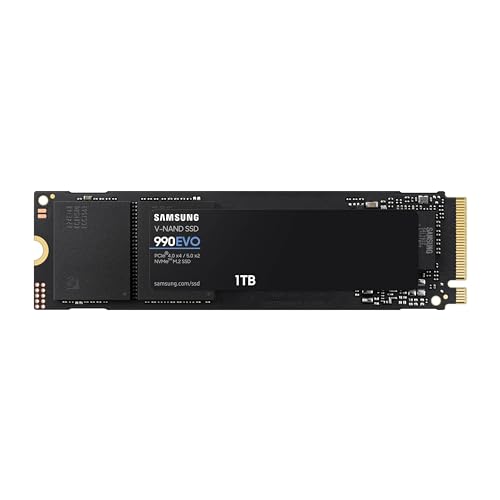 SAMSUNG 990 EVO 1TB
|
(6.8K+ ratings) | Mid-Range | PCIe 5.0 compatible speeds | Everyday laptops & gaming boot drives | Check Price | |
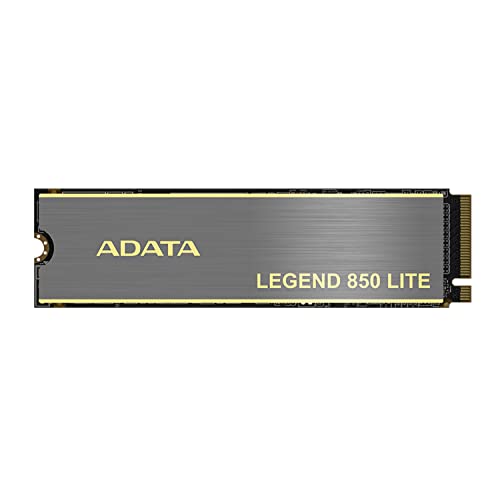 ADATA Legend 850 1TB
|
(1.6K+ ratings) | Budget | PCIe Gen4 up to 5,000MB/s | Budget gaming & PS5 upgrades | Check Price | |
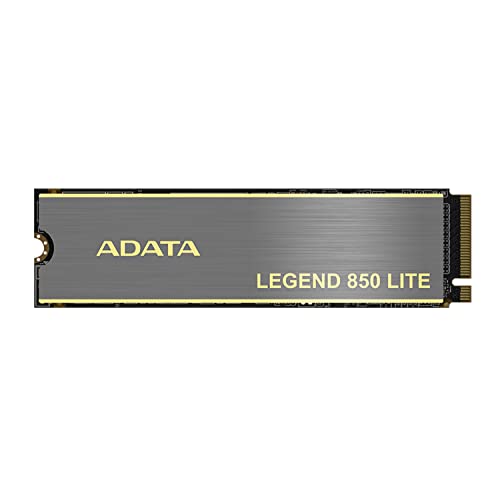 ADATA Legend 850 2TB
|
(1.6K+ ratings) | Premium | 2TB high capacity | Large game libraries & media editing | Check Price | |
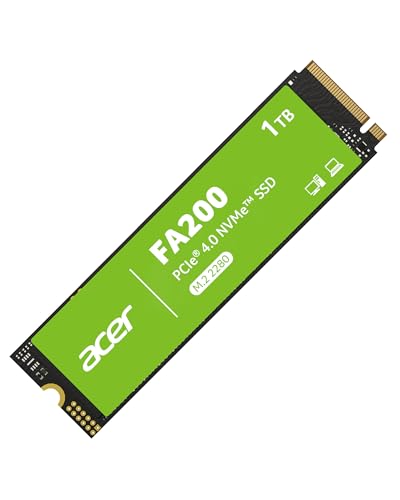 acer FA200 1TB
|
(1.5K+ ratings) | Budget | Reads up to 7,200MB/s | Speed-focused budget upgrades | Check Price | |
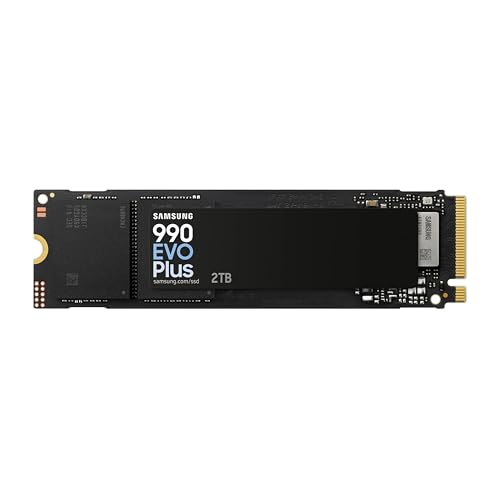 Samsung 990 EVO Plus 2TB
|
(8.4K+ ratings) | Premium | Blazing 7,250 MB/s reads | Creators & heavy file transfers | Check Price |
1. SAMSUNG 990 EVO SSD 1TB, PCIe Gen 4x4, Gen 5x2 M.2 2280 NVMe Internal Solid State Drive, Speeds Up to 5,000MB/s, Upgrade Storage for PC Computer, Laptop, MZ-V9E1T0B/AM, Black
The SAMSUNG 990 EVO is a balanced, top-rated NVMe that pairs fast read/write performance with good power efficiency and Samsung’s Magician software for firmware, health monitoring and simple cloning support. It solves the core problem — replacing or expanding laptop storage without reinstalling — by offering reliable performance, thermal control and software tools to make migration straightforward.
Key Specs
- Sequential read/write up to 5,000/4,200 MB/s
- PCIe 5.0 interface (backward compatible with PCIe 4.0)
- Power efficiency ~70% improved per watt vs previous gen
- Samsung Magician software for firmware and drive health
Pros
- Fast, responsive performance for boot and apps
- Good power/thermal design helps laptop battery/temps
- Samsung Magician simplifies firmware and health checks
Cons
- Some users report mixed durability over long term
- Higher cost than basic budget NVMe options
Best For: Everyday laptops & gaming boot drives
Check Latest Price on Amazon2. ADATA 1TB SSD Legend 850 LITE, NVMe PCIe Gen4 x 4 M.2 2280 Internal Solid State Drive, Speed up to 5,000MB/s, Storage for Gaming and PC Upgrades, High Endurance with 3D NAND
ADATA’s Legend 850 LITE packs PCIe Gen4 performance and monitoring software at a budget price, making it a practical choice for cloning a laptop drive without breaking the bank. It solves the migration problem by offering easy installation, decent speeds, and ADATA’s SSD Toolbox to check health and apply firmware updates before or after cloning.
Key Specs
- M.2 2280 form factor; PCIe Gen4 x4 NVMe
- Sequential read/write up to 5,000/4,200 MB/s
- 3D NAND with high endurance
- ADATA SSD Toolbox for S.M.A.R.T. monitoring
Pros
- Excellent value for money and storage capacity
- Fast enough for gaming and daily workflows
- Easy installation and monitoring tools included
Cons
- Some users report mixed long-term stability (scalability)
- Heat-sink variants received mixed feedback on fit and effectiveness
Best For: Budget gaming & PS5 upgrades
Check Latest Price on Amazon3. ADATA 2TB SSD Legend 850 LITE, NVMe PCIe Gen4 x 4 M.2 2280 Internal Solid State Drive, Speed up to 5,000MB/s, Storage for Gaming and PC Upgrades, High Endurance with 3D NAND
The 2TB Legend 850 LITE brings the same Gen4 performance as the 1TB model but with much more capacity — ideal if you want to clone to a larger drive and keep extra room. It solves the storage migration problem by giving you space to expand without juggling files, and ADATA’s Toolbox helps validate the drive before swapping.
Key Specs
- 2TB capacity, M.2 2280 form factor
- PCIe Gen4 x4 NVMe; up to 5,000/4,200 MB/s
- 3D-stacked NAND for endurance
- S.M.A.R.T. monitoring via ADATA software
Pros
- Large capacity reduces need for future upgrades
- Good read/write speeds for bulk transfers
- Value compared to other 2TB NVMe drives
Cons
- Some customers report mixed scalability/stability
- Heat-sink design reviews are mixed — check fit
Best For: Large game libraries & media editing
Check Latest Price on Amazon4. acer FA200 NVMe Gen4 SSD 1TB, PCIe 4.0, M.2 2280, Read Speeds Up to 7200MB/s, Internal Solid State Drive for Laptop, Desktop PC and PS5 Upgrade - BL.9BWWA.124
acer’s FA200 pushes high sequential read speeds at a budget price, making it attractive when you want fast cloning and big transfer throughput. It solves the migration need by offering strong performance for a secondary drive or primary boot drive, though there are reports of short-term durability issues so validate and backup when migrating.
Key Specs
- PCIe Gen4 x4 NVMe 2.0
- Sequential reads up to 7,200 MB/s
- M.2 2280 form factor suitable for laptops/desktops
- Optimized for fast app/game loading
Pros
- Very fast read speeds for the price
- Easy to install and great for secondary drives
- Strong value for performance-focused buyers
Cons
- Mixed durability reports including some early failures
- Some users question long-term reliability
Best For: Speed-focused budget upgrades
Check Latest Price on Amazon5. Samsung 990 EVO Plus SSD 2TB, PCIe Gen 4x4, Gen 5x2 M.2 2280, Speeds Up-to 7,250 MB/s, Upgrade Storage for PC/Laptops, HMB Technology and Intelligent Turbowrite 2.0, (MZ-V9S2T0B/AM)
The Samsung 990 EVO Plus is built for extreme transfer speeds and thermal efficiency, ideal if you need a high-capacity, cutting-edge internal SSD. For migration it offers software support, strong thermal control and excellent sustained throughput — helpful when cloning large partitions or moving multi-GB projects.
Key Specs
- Sequential read/write up to 7,250/6,300 MB/s
- Intelligent TurboWrite 2.0 and HMB tech
- Nickel-coated controller for thermal & power efficiency
- Samsung Magician software for updates & monitoring
Pros
- Top-tier read/write speeds for heavy workloads
- Excellent thermal control for sustained transfers
- Wide user base and strong software support
Cons
- Premium price compared to mainstream NVMe drives
- Some customers reported occasional drive failures
Best For: Creators & heavy file transfers
Check Latest Price on AmazonWhich One Should You Choose?
If budget is tight → choose the ADATA Legend 850 LITE 1TB (B0BWFQGH31) for solid Gen4 performance at a low price. If you want large capacity you can rely on now and later in an enclosure → pick the ADATA Legend 850 LITE 2TB (B0BWFN1N87). If premium speed, thermal control and broad software support matter → the Samsung 990 EVO Plus 2TB (B0DHLCRF91) is the pick. For most users seeking a balance of reliability, efficiency and migration tools, the SAMSUNG 990 EVO 1TB (B0CRCC9863) is our Best Overall choice.
Best for Specific Scenarios
- Upgrade an older laptop boot drive: SAMSUNG 990 EVO 1TB because it balances speed, low power draw and Samsung Magician tools for firmware and health checks.
- Upgrade PS5 or gaming drive: ADATA Legend 850 LITE 1TB because it supports PCIe Gen4 speeds and offers good value for game libraries.
- Large media editing/scratch disk: Samsung 990 EVO Plus 2TB because of its sustained write performance and thermal control during long transfers.
Frequently Asked Questions
Can I clone my laptop drive without reinstalling Windows?
Yes. Use a reliable cloning tool (Macrium Reflect, Acronis, or vendor tools like Samsung Magician), connect the new SSD via a USB-C M.2 adapter/enclosure, perform a sector-by-sector clone, then swap drives. Always backup first and verify the cloned drive boots in BIOS/UEFI before finalizing.
What adapter or enclosure do I need to clone an M.2 NVMe drive?
Choose a USB-C enclosure or adapter that explicitly supports NVMe (not SATA M.2) and UASP/USB 3.2 Gen2 if possible for faster transfers. This lets you connect the new SSD externally for cloning and later reuse it as a portable drive if desired.
How do I avoid data loss during the upgrade?
Step 1: back up important files to an external drive or cloud. Step 2: run drive health checks on the source with SMART tools. Step 3: perform the clone, then validate by booting from the new drive (or checking file integrity). Keep the original drive intact until you confirm the new drive boots and all data is accessible.
How We Selected These Products
Our recommendations are based on data-driven analysis: we evaluated 155229+ products across 23916+ brands using a composite scoring system that weighs rating (40%), review volume (30%), price value (20%), and demand signals (10%). Every product is ranked by data, not opinions.
Last updated: May 06, 2026
As an Amazon Associate we earn from qualifying purchases at no extra cost to you. Full disclosure.
Ratings and review counts reflect data at time of writing and may have changed. Click through to Amazon for current information.