As an Amazon Associate we earn from qualifying purchases. Learn more.
How to Speed Up an Old Laptop for Classwork (2026)
Slow boot times, sluggish browser tabs, and long file saves make studying on an old laptop frustrating. If you’re a student who needs reliable speed for note-taking, virtual classes, and light media work, this guide shows how to solve those pain points with targeted SSD and RAM upgrades. You’ll get a step-by-step checklist, recommended M.2 NVMe drives and a RAM pick, the tools you’ll need, and safe backup/cloning steps. Products were selected for real-world value, ease of installation, thermal control, and compatibility with common laptop models used by students.
Quick Answer
Upgrading to a fast NVMe SSD and adding RAM is the quickest way to speed up an old laptop for classwork; our top pick is the acer FA200 NVMe Gen4 SSD for its high sequential speeds and included cloning software that simplifies migration.
Our Top Picks
Quick Comparison
Select 2-3 products to compare side-by-side
| Compare | Product | GearLark Score | Price Tier | Key Feature | Best For | Action |
|---|---|---|---|---|---|---|
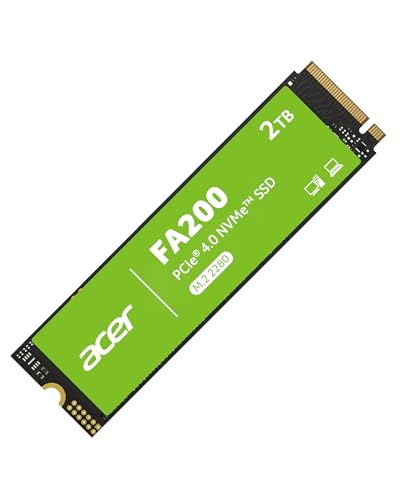 acer FA200 2TB NVMe
|
Premium | PCIe Gen4 speeds up to 7200MB/s | Students needing maximum responsiveness | Check Price | ||
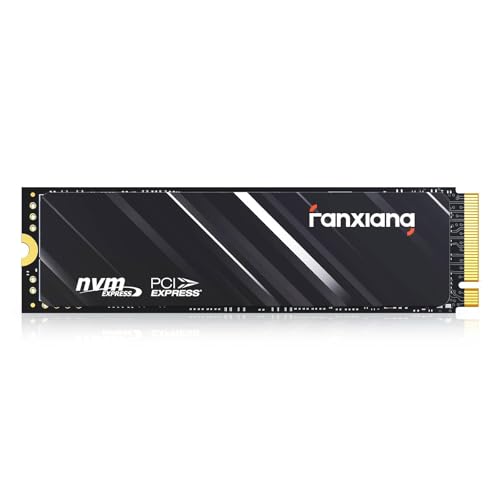 Fanxiang 1TB NVMe
|
Budget | Good PCIe Gen4 performance at low cost | Students on a tight budget | Check Price | ||
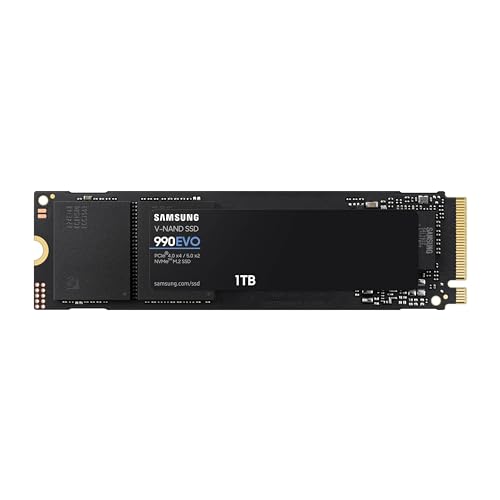 Samsung 990 EVO 1TB
|
Budget | Balanced performance and power efficiency | Students who want reliable everyday speed | Check Price | ||
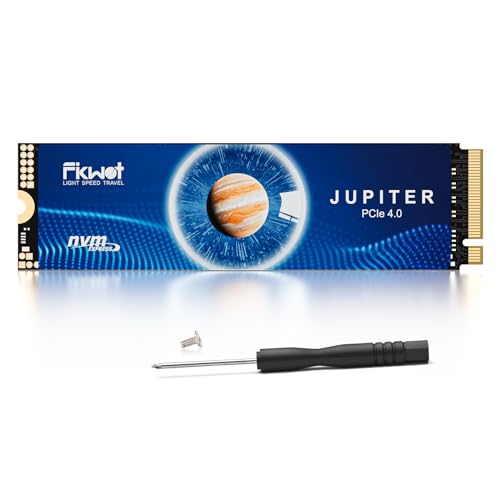 Fikwot FX660 2TB
|
Premium | Dynamic SLC cache for steady speeds | Users needing large capacity and PS5 compatibility | Check Price | ||
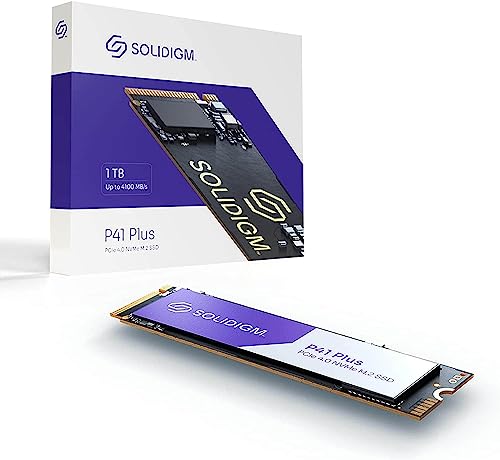 Solidigm P41 Plus 1TB
|
Mid-Range | Balanced Gen4 performance and power efficiency | Students wanting best value and steady performance | Check Price |
1. acer FA200 NVMe Gen4 SSD 2TB, PCIe 4.0, M.2 2280, Read Speeds Up to 7200MB/s, Internal Solid State Drive for Laptop, Desktop PC and PS5 Upgrade - BL.9BWWA.125
The acer FA200 is built for speed and responsive multitasking. Its PCIe Gen4 x4 NVMe controller and thermal graphene pad reduce throttling and, importantly for students, it ships with Acronis cloning software so you can migrate your OS and files quickly without reinstalling.
Key Specs
- Interface: PCIe Gen4 x4 NVMe 2.0
- Form factor: M.2 2280
- Sequential read: up to 7200 MB/s
- Included software: Acronis cloning
Pros
- Very high sequential read/write speeds for fast boot and app loads
- Good thermal controls to maintain performance under load
- Includes cloning software to simplify data migration
Cons
- Premium price tier
- Some users report occasional early failures (monitor drive health)
Best For: Students needing maximum responsiveness
Check Latest Price on Amazon2. Fanxiang 1TB NVMe SSD PCIe Gen4 M.2 Internal Gaming SSD for PS5, Up to 4800 MB/s, 3D NAND SLC Cache Solid State Drive Upgrade Storage for PC/Laptops S690Q
Fanxiang delivers solid Gen4 NVMe speeds around 4800MB/s and a budget-friendly capacity that noticeably speeds up boot times and app launches. It’s easy to install and includes a thermal sticker, though compatibility and heat behavior vary by laptop model.
Key Specs
- Interface: PCIe Gen4 x4 NVMe 1.4
- Form factor: M.2 2280
- Sequential read: up to 4800 MB/s
- Warranty/service: 5-year support
Pros
- Excellent value for money for an NVMe Gen4 drive
- Simple installation and sufficient capacity for student files
- Includes heat-dissipation sticker
Cons
- Mixed reports on compatibility with some consoles/laptops
- Some users report heat and data retention issues—monitor temps
Best For: Students on a tight budget
Check Latest Price on Amazon3. SAMSUNG 990 EVO SSD 1TB, PCIe Gen 4x4, Gen 5x2 M.2 2280 NVMe Internal Solid State Drive, Speeds Up to 5,000MB/s, Upgrade Storage for PC Computer, Laptop, MZ-V9E1T0B/AM, Black
The Samsung 990 EVO balances fast read/write speeds with strong power efficiency and thermal control, making it a dependable upgrade for laptops used in classwork and research. Firmware support via Samsung Magician helps maintain performance and drive health over time.
Key Specs
- Interface: Compatible with PCIe 4.0 x4 and PCIe 5.0 x2
- Form factor: M.2 2280
- Sequential read: up to 5000 MB/s
- Includes: Magician firmware & monitoring software
Pros
- Consistent performance with good thermal control
- Power efficient—helps battery life on laptops
- Well-supported firmware and maintenance software
Cons
- Durability reports are mixed—watch for long-term reliability
- Performance benefits limited by older laptop interfaces
Best For: Students who want reliable everyday speed
Check Latest Price on Amazon4. FX660 2TB M.2 SSD, PCIe Gen 4x4 Dynamic SLC Cache - Speeds up to 5200MB/s M.2 2280 NVMe Internal SSD, Upgrade Storage for PC Computer, Laptop and PS5
Fikwot’s FX660 offers large capacity and dynamic SLC caching to sustain higher speeds during bursts—helpful for file transfers and multitasking. It ships with a heat-dissipation sticker and even a basic screwdriver, making installation easier for students upgrading at home.
Key Specs
- Interface: PCIe Gen4 x4 NVMe 1.4
- Form factor: M.2 2280
- Sequential read: up to 5200 MB/s
- Extras: Graphene heat sticker and included screwdriver
Pros
- Good capacity-to-price for heavy file storage
- Includes tools and thermal sticker for easier installs
- Dynamic cache helps maintain performance during transfers
Cons
- Mixed durability reports—some early failures noted
- Quality control can vary between units
Best For: Users needing large capacity and PS5 compatibility
Check Latest Price on Amazon5. SolidigmTM P41 Plus 1TB SSD, PCIe GEN 4 NVMe 4.0 x4 M.2 2280 3D NAND, Storage Upgrades for PC and Laptops, Everyday Computing and Gaming, SSDPFKNU010TZX1
Solidigm P41 Plus offers a strong mix of performance, power efficiency and compatibility at a mid-range price. It’s a practical pick for older laptops where thermal efficiency and consistent throughput matter during long study sessions.
Key Specs
- Interface: PCIe Gen4 x4 NVMe
- Form factor: M.2 2280
- Read/Write: up to 4125/2950 MB/s
- Endurance: 400 TBW (1TB model)
Pros
- Great value—solid performance without a premium price
- Power efficient and thermally managed for laptops
- Easy installation and broad compatibility
Cons
- Not the absolute fastest Gen4 drive
- May be overkill for very old laptops limited to SATA speeds
Best For: Students wanting best value and steady performance
Check Latest Price on AmazonWhich One Should You Choose?
If budget is tight → Fanxiang 1TB (B0CM8RVVG1) is the best entry-level NVMe upgrade that dramatically improves boot and app load times. If you want the best blend of reliability and value → Solidigm P41 Plus 1TB (B0C66DDJSW) offers steady performance and efficiency without a premium price. If premium speed and easy migration matter most → acer FA200 2TB (B0D9GT32H1) delivers the highest peak speeds and includes cloning software to simplify moving your system.
Best for Specific Scenarios
- Quick boot and everyday study: Solidigm P41 Plus 1TB because it balances speed, thermal efficiency, and value for long study sessions.
- Lowest upfront cost to speed an old laptop: Fanxiang 1TB because it delivers Gen4-grade performance at a budget price and includes a heat sticker for better temps.
- Maximum responsiveness and easy migration: acer FA200 2TB because of its high PCIe Gen4 speeds and included Acronis cloning software to move your OS quickly.
Frequently Asked Questions
Will an SSD and RAM upgrade make my old laptop feel like a new one?
Upgrading from an HDD to an SSD typically yields the biggest perceived speed improvement—faster boot, app launches and file access. Adding RAM prevents constant disk swapping when you have many tabs or apps open. Together they can make an older laptop feel substantially faster for classwork, though CPU and GPU limits remain for heavy tasks like video rendering.
How do I back up my data before swapping drives?
Use an external drive or cloud backup to copy important documents and photos. If migrating the OS, use cloning software included with many SSDs (or free tools like Macrium Reflect) and a USB-to-NVMe/SATA adapter to clone the old drive to the new one before installation. Always verify the backup or cloned drive boots before wiping the source.
How can I check if my laptop supports NVMe or only SATA?
Check the laptop’s service manual or search the model’s technical specifications online for M.2 support and the interface type. Inside the M.2 slot documentation will note whether it supports NVMe/PCIe lanes or only SATA. If unsure, pull the access panel and inspect the labeling near the slot, or ask the manufacturer’s support.
How We Selected These Products
Our recommendations are based on data-driven analysis: we evaluated 155229+ products across 23916+ brands using a composite scoring system that weighs rating (40%), review volume (30%), price value (20%), and demand signals (10%). Every product is ranked by data, not opinions.
Last updated: August 07, 2026
As an Amazon Associate we earn from qualifying purchases at no extra cost to you. Full disclosure.
GearLark Score is our editorial ranking based on a composite analysis of product quality, value, and verified customer sentiment. Click through to Amazon for current pricing, availability, and live customer reviews.