As an Amazon Associate we earn from qualifying purchases. Learn more.
How to Connect a Portable Monitor for On-Campus Presentations (2026)
Presenting on campus can be stressful when your laptop won’t talk to the projector or you can’t set up a second screen quickly. This guide helps students, TAs, and visiting lecturers connect a portable monitor reliably for classroom and seminar-room presentations. You’ll learn which adapters to carry, driver and OS tips to avoid ‘no signal’ moments, and a fast setup checklist for small rooms. Products were chosen for real-world campus needs: portability, multiple connector options (USB‑C/HDMI), build quality, and ease of setup based on specs and verified customer feedback.
Quick Answer
Use a plug-and-play USB-C or HDMI-capable portable monitor and carry a USB-C (Alt Mode) and HDMI cable plus a small adapter kit. Our top pick, the 14" domyfan Laptop Screen Extender (B0F8QXTNXM), balances ultra-thin portability with full HDMI/USB-C connectivity for most campus laptops and projectors.
Our Top Picks
Quick Comparison
Select 2-3 products to compare side-by-side
| Compare | Product | GearLark Score | Price Tier | Key Feature | Best For | Action |
|---|---|---|---|---|---|---|
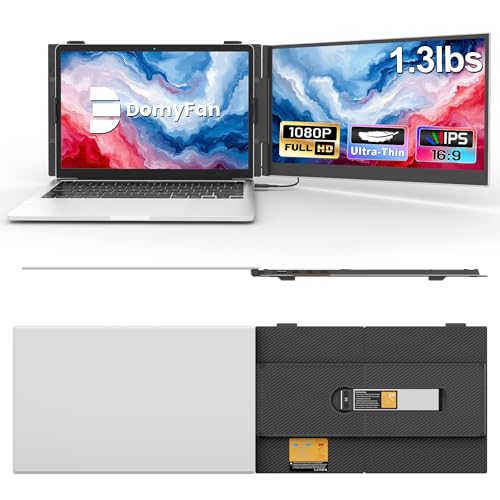 domyfan 14" Extender
|
Premium | Ultra-thin 4.5mm FHD IPS | Frequent campus presenters | Check Price | ||
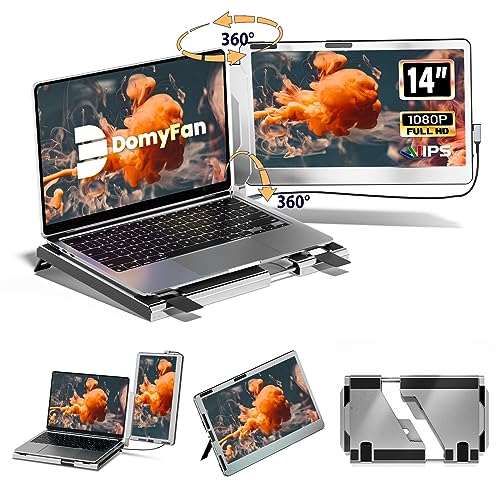 domyfan 14" Rotating
|
Budget | 360° rotatable aluminum stand | Tight budgets and travel | Check Price | ||
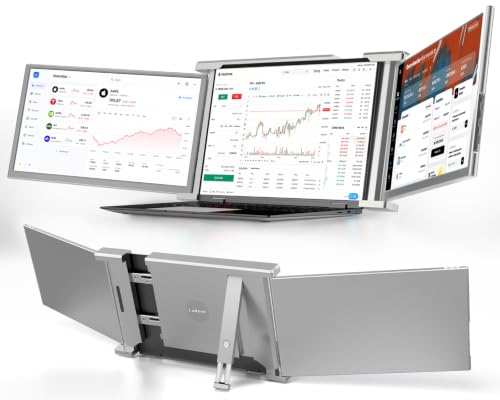 Ladomi Triple 14"
|
Premium | Triple-screen expansion (315°) | Power users needing extra screen real estate | Check Price |
1. 14" Laptop Screen Extender, Ultra-Thin Portable Dual Laptop Monitor Extender with FHD 1080P IPS Display, Plug & Play via HDMI/USB-A/Type-C for 13-17" Laptops, Works with Windows/Mac/Android
This ultra-thin dual monitor extender solves the common campus presentation problem by offering both USB‑C (Alt Mode) and HDMI inputs plus bundled cables and a carry bag. Its reinforced back frame and extra clasps make setup against a laptop stable, while plug-and-play operation eliminates driver hassles in rented rooms and shared labs.
Key Specs
- 14" FHD 1080P IPS display
- Ultra-thin 4.5 mm, 1.3 lb
- Inputs: USB-C, HDMI, USB-A (included cables)
- 100% sRGB, built-in stereo speakers
Pros
- Extremely lightweight and travel-friendly
- Multiple connection options reduce adapter hunting
- Reinforced back frame and clasps improve stability
Cons
- May require HDMI if laptop USB-C only supplies power
- Premium tier price vs. simpler single-screen options
Best For: Frequent campus presenters
Check Latest Price on Amazon2. 14" Portable Monitor for Laptop, 360 Rotation Laptop Screen Extender with Stand, 1080P FHD IPS Display, HDMI/USB-A/Type-C Plug and Play for Windows, Mac, PC, Xbox, Switch & PS4/5
This budget-friendly 14" monitor solves last-minute room changes by offering a self-contained aluminum stand with 360° rotation and plug-and-play HDMI/USB‑C connections. It’s a great fallback for students who need a stable screen at different desks without clipping to a laptop and comes with cables so you don’t have to improvise adapters.
Key Specs
- 14" FHD 1080P IPS display
- 360° rotatable aluminum stand
- Inputs: Type-C, Mini-HDMI, USB-A (cables included)
- Built-in dual speakers, 60Hz
Pros
- Built-in stand avoids laptop clipping and potential damage
- Very lightweight and easy to pack
- Includes multiple cables for quick setup
Cons
- Stand height is limited for some podiums
- May need alternate cable combos with older laptops
Best For: Tight budgets and travel
Check Latest Price on Amazon3. Laptop Screen Extender, 14" FHD 1080P IPS Laptop Monitor Extender, 315 Rotation Triple Portable Monitor for 13.5" -16.5" Laptops, Type-C/HDMI/USB-A Plug & Play for Wins, Mac, Android, Switch
Ladomi’s triple extender targets presenters who need multiple simultaneous views (slides, notes, timer). It solves the problem of juggling windows during demos but requires checking port compatibility—some Macs and single-port laptops need specific cable combos or an external power adapter for HDMI.
Key Specs
- 14" FHD 1080P IPS display
- 315° rotation and extendable brackets
- Inputs: Dual USB-C, HDMI, USB-A (cables included)
- Supports extended, mirrored and repeated modes
Pros
- Big productivity boost for multitasking and demos
- Flexible rotation and bracket system
- Comprehensive cable pack included
Cons
- Pre-purchase compatibility notes for some Mac chips
- May require extra power or HDMI+USB combos on single-port laptops
Best For: Power users needing extra screen real estate
Check Latest Price on AmazonWhich One Should You Choose?
If budget is tight → choose the domyfan 14" Portable Monitor (B0C7866T2B). It includes cables and a durable aluminum stand so you can set up quickly without extra adapters. If you need the most portable, low-profile option that still supports both USB‑C and HDMI → choose the domyfan 14" Laptop Screen Extender (B0F8QXTNXM) for its ultra-thin build and reinforced mounting. If premium multi-window productivity matters (notes, slides, timer) → choose the Ladomi 14" Triple Monitor Extender (B0CQK4Q9Y6) for a true multi-screen desktop on the go.
Best for Specific Scenarios
- Quick seminar or lab demo: domyfan 14" Portable Monitor (B0C7866T2B) because the built-in stand and included cables let you swap rooms fast.
- Presenter who travels light: domyfan 14" Laptop Screen Extender (B0F8QXTNXM) because the ultra-thin, lightweight design fits easily in a backpack and clips or mounts securely.
- Multitasking lectures / data demos: Ladomi 14" Triple Monitor Extender (B0CQK4Q9Y6) because extra screen real estate keeps slides, notes, and live data visible simultaneously.
Frequently Asked Questions
What adapters should I carry for campus presentations?
Bring a short USB‑C (Alt Mode) to USB‑C cable, a USB‑C to HDMI adapter (or cable), and a 1.5–2 m HDMI cable. Add a USB-A to USB‑C cable as a fallback and a small 5V/2A USB power brick if the monitor requires external power.
Why does my portable monitor say "No Signal"?
Usually because the laptop's USB‑C port only supplies power (no video) or the monitor needs additional power. Try an HDMI connection, use the vendor-supplied cables, or plug a 5V/2A power source into the monitor. Also check display output settings in your OS (Display Arrangement on macOS; Display Settings on Windows).
Do I need drivers to use a plug-and-play portable monitor?
Most modern portable monitors work without drivers on Windows and macOS. Only install vendor utilities if you need extra features (rotation hotkeys, color profiles). For macOS M-series devices, confirm compatibility notes before buying, as some models require specific port combos.
How We Selected These Products
Our recommendations are based on data-driven analysis: we evaluated 155229+ products across 23916+ brands using a composite scoring system that weighs rating (40%), review volume (30%), price value (20%), and demand signals (10%). Every product is ranked by data, not opinions.
Last updated: August 25, 2026
As an Amazon Associate we earn from qualifying purchases at no extra cost to you. Full disclosure.
GearLark Score is our editorial ranking based on a composite analysis of product quality, value, and verified customer sentiment. Click through to Amazon for current pricing, availability, and live customer reviews.